

- Call the platform from a workflow — an API node picks the connection and Champ attaches the credentials for you.
- Sync tickets into cases — a scheduled poll turns tickets into cases that run a case workflow.
- See usage — every call a workflow makes through the connection is logged on the connection’s detail page.
Supported platforms
Need something that isn’t listed? Any HTTP API can be wired up as a REST API integration.
Step 1 — Connect the platform
- Navigate to Integrate → Integrations in the sidebar.
- Find your platform under Ticketing Platforms and click Connect.
- A secure connect window opens. Sign in to the platform and approve the permissions it asks for.
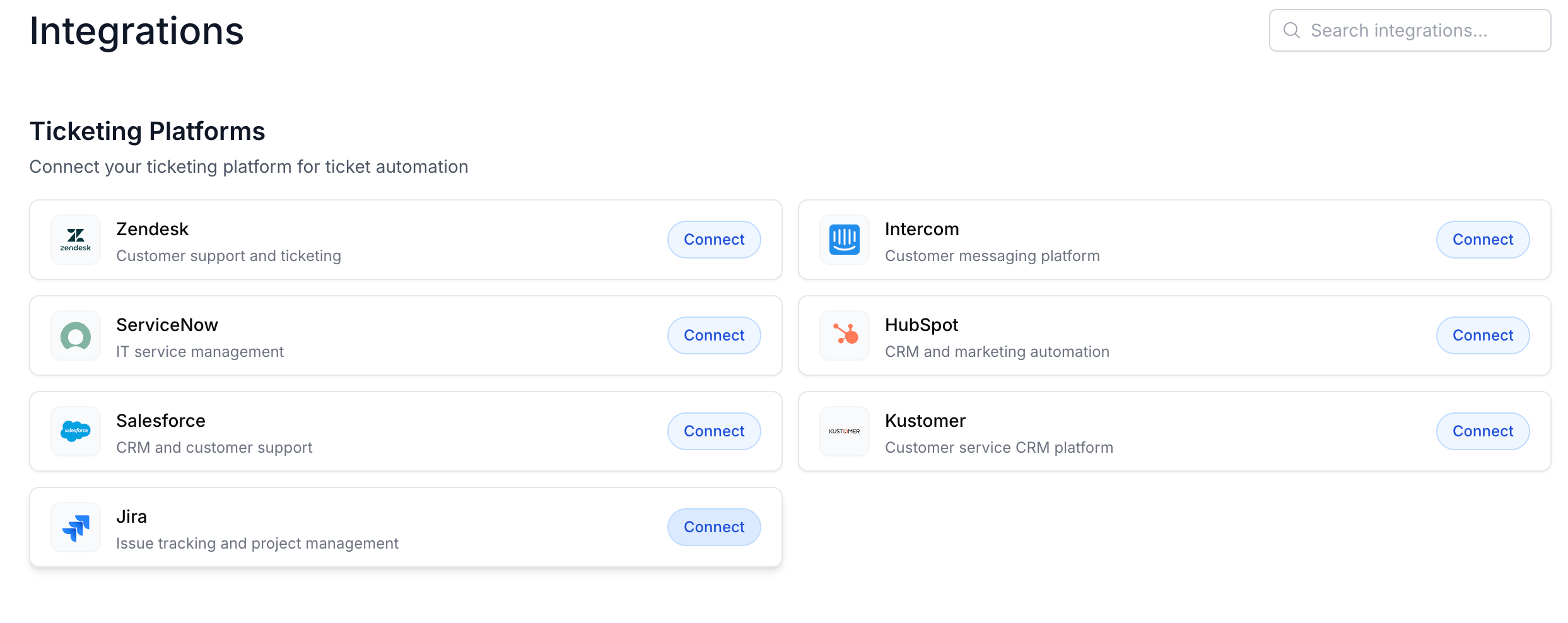
The Ticketing Platforms section of the Integrations page. Click Connect on the platform you use.
Connect each platform once per workspace. Everyone on your team shares the connection — there’s no need for each
person to authorize their own.
Step 2 — Use it in a workflow
Add an API node to any workflow and select your platform under Integration Connection. Champ attaches the credentials to every request, so you only describe the call:- Choose the HTTP Method.
- Enter the Path — the connection’s base URL is already prefilled, so a Zendesk call is just
/api/v2/tickets.json, and a Jira call is just/rest/api/3/issue/SUP-1. - Fill in headers and a body if the endpoint needs them.
A few platforms (Kustomer, for example) route through Champ without a stored base URL. For those the node asks for a
full URL instead of a path — paste the whole endpoint.
Step 3 — Sync tickets into cases
A sync polls the platform on a schedule and turns each new or updated ticket into a case, which then runs your case workflow. You need a case workflow with a ticketing case source before you start — create one under Workflows first.- Go to Integrations → Cases Sync and open the Data Syncs tab.
- Click + Add Sync and fill in the form:
enum
required
Which connected platform to pull from. Only platforms that support cases sync appear here.
enum
required
The record to sync — Zendesk
Ticket, Intercom Conversation, Jira Issue, Salesforce Case, and so on. Most
platforms offer exactly one, in which case it’s fixed for you.string
A name for this sync, shown in the syncs table. Defaults to the object type.
number
required
How often to poll. Defaults to 5 minutes. (Zendesk is locked to 5 — it syncs on Champ’s own schedule.)
enum
required
The ticketing case workflow each synced ticket runs. If the dropdown is empty, you don’t have one yet.
number
Advanced. How far back to look on the first run, before the sync has a cursor. Defaults to 7 days on most platforms.
number
Advanced. How many records to pull per request. Leave the default unless you’re tuning a large backfill.
- Save, then turn on the Enabled switch in the syncs table. New syncs are created switched off so you can review them before any data moves.