

Connect your computer
Before you start, have a Windows computer with Remote Desktop enabled, a public IP address or hostname, and a Windows account allowed to connect remotely. Your firewall must allow RDP connections from Champ; ask your IT team to configure access if needed.- Open Computers and click Add computer.
- Bring your own is selected by default.
- Enter a Name, Host (public IP or hostname), and Port (usually
3389). - Enter the Windows Username and Password. For a domain account, use
DOMAIN\nameor[email protected]. - Choose a Resolution and click Save.
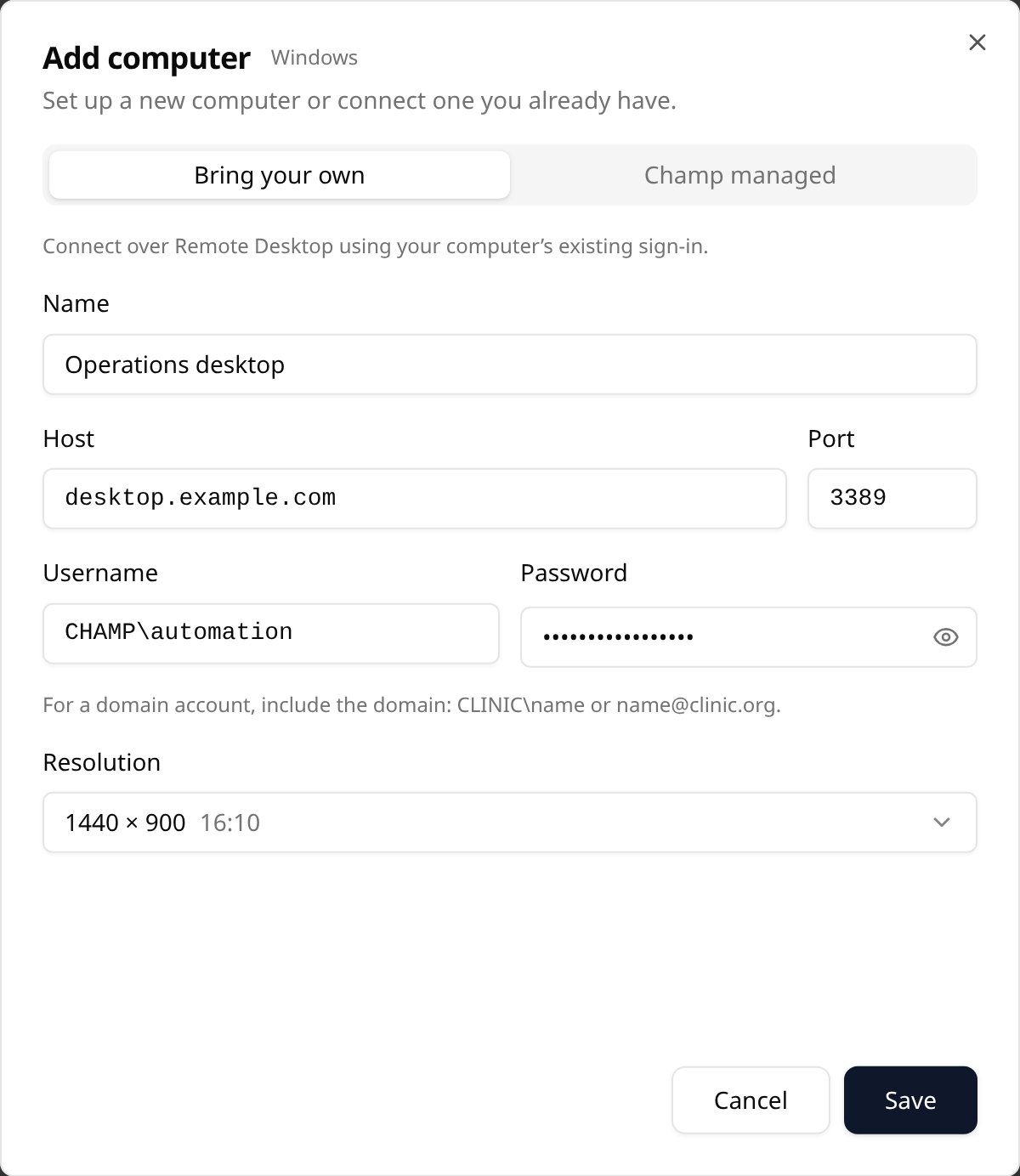
Add a computer using its existing Windows sign-in. Example values shown.
Connections are shared with your organization. Passwords are encrypted; when editing, leave the password blank to
keep the saved one.
Use a Champ-managed computer
Champ admins can also choose Champ managed in the same dialog. Review the generated name and sign-in, choose a Size and Resolution, then click Set up computer. Wait for setup to finish before connecting. If this option isn’t available, contact your Champ team to arrange a managed computer.Test and use the connection
- On the computer’s page, click Connect and confirm the Windows desktop opens. Install any applications and sign in to the accounts your workflow needs.
- Close the live view or click Disconnect when finished. Each computer allows one active connection at a time.
- Open your Computer Use workflow, select the computer under Settings → Computer, then click Connect to start building steps.