> ## Documentation Index
> Fetch the complete documentation index at: https://docs.champ.ai/llms.txt
> Use this file to discover all available pages before exploring further.
# Add a REST API integration
> Connect a REST endpoint as a tool your workflows can call
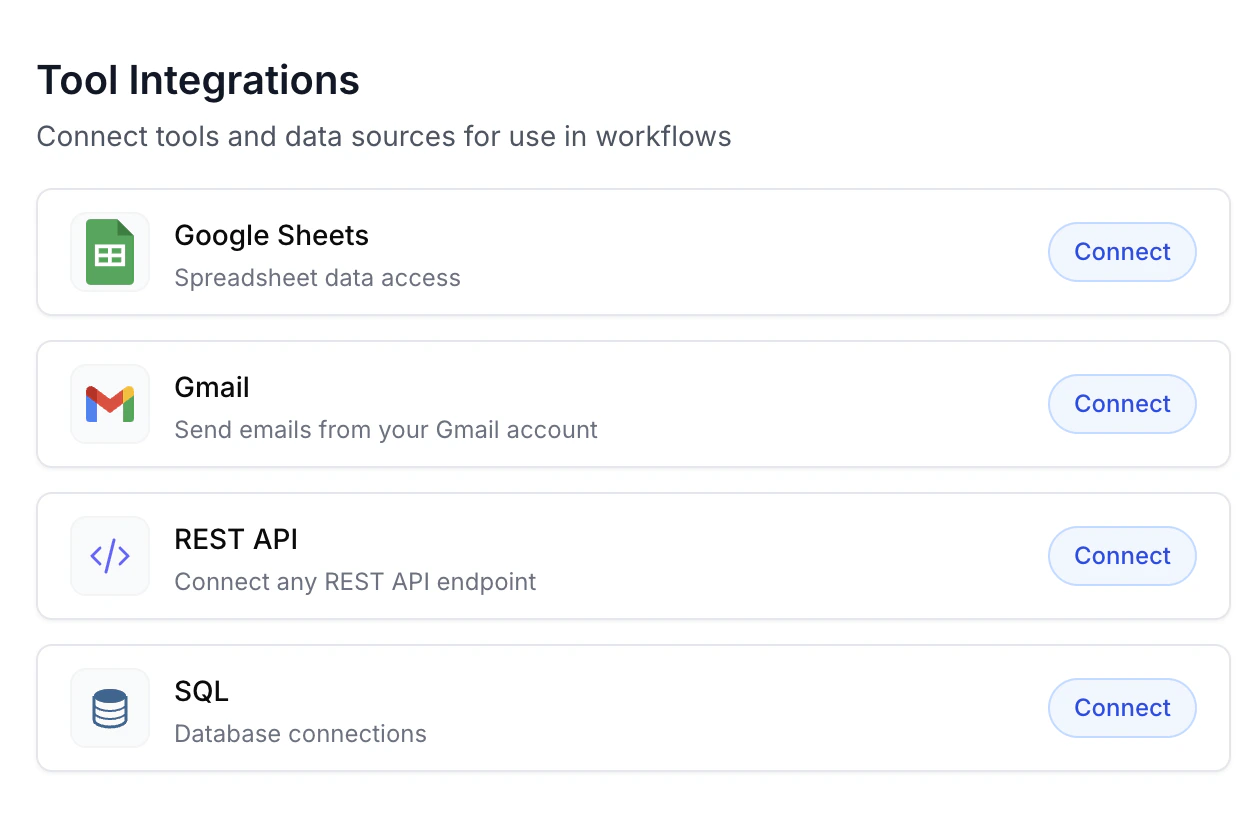
REST API integrations let your workflows call any HTTP endpoint from inside an agent node's toolset. Once you add a connection, it appears under **Tool Integrations** on the Integrations page and can be used to build REST queries that agents invoke as tools.
## Create a REST API connection
1. Navigate to [**Integrations**](https://dash.champ.ai/app/integrations) in the sidebar.
2. Under **Tool Integrations**, find the **REST API** card and click **Connect**.
3. Fill in the fields below and click **Create**.
 ### Fields
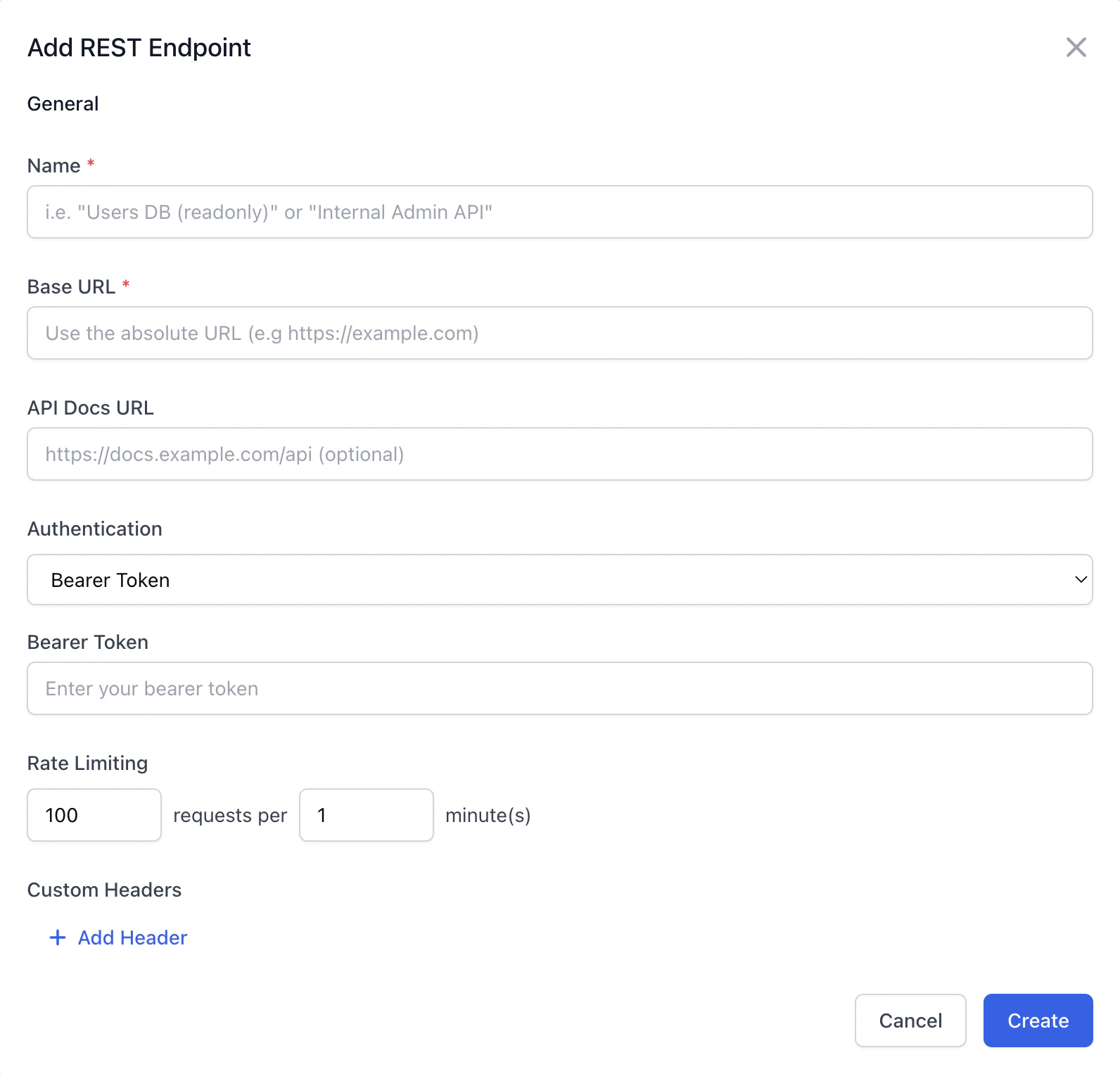 A human-readable label for the connection (e.g. "Acme CRM"). Shown in the tools list when building workflows.
The root URL for the API (e.g. `https://api.acme.com/v1`). REST queries built against this connection will append their path to this base.
Optional link to the provider's API documentation. Surfaced in the UI when you're building queries against this connection.
How Champ should authenticate each request. See [authentication types](#authentication-types) below.
Optional key/value pairs sent on every request (e.g. `X-API-Version: 2024-01`). Click **+ Add Header** to add a row.
Optional safeguard to cap outbound traffic. Entered inline as **N requests per M minute(s)** (default `100` / `1`). Champ will queue or error additional requests once the limit is hit.
### Authentication types
| Type | Fields | Behavior |
| ---------- | ------------------- | -------------------------------------------------------------------------------------------------------------------------------------------------- |
| **None** | — | No auth header added. Use for public APIs. |
| **Bearer** | Bearer Token | Sends `Authorization: Bearer ` on every request. |
| **Basic** | Username, Password | Sends HTTP Basic authentication. |
| **Custom** | Auth Payload (JSON) | Advanced: pass a JSON object handled by the integration engine. Use this for custom header schemes or providers that don't fit the patterns above. |
Credentials are encrypted at rest. Only the tenant that created the connection can read them.
## Use the connection in a workflow
After saving, the connection is available for building REST queries:
1. On the Integrations page, open **New REST Query**.
2. Select your connection under **Connection**.
3. Define the path, HTTP method, parameters, and response shape.
4. The query is now available as a tool in any workflow agent node's tool list — the agent will call it when its instructions require the data.
## Editing and removing
* Click any connection in the **Tool Integrations** table to edit its fields. Changes apply to the next request; in-flight queries use the previous values.
* Deleting a connection breaks any REST queries built against it. Remove the queries first, or they'll fail at runtime.
A human-readable label for the connection (e.g. "Acme CRM"). Shown in the tools list when building workflows.
The root URL for the API (e.g. `https://api.acme.com/v1`). REST queries built against this connection will append their path to this base.
Optional link to the provider's API documentation. Surfaced in the UI when you're building queries against this connection.
How Champ should authenticate each request. See [authentication types](#authentication-types) below.
Optional key/value pairs sent on every request (e.g. `X-API-Version: 2024-01`). Click **+ Add Header** to add a row.
Optional safeguard to cap outbound traffic. Entered inline as **N requests per M minute(s)** (default `100` / `1`). Champ will queue or error additional requests once the limit is hit.
### Authentication types
| Type | Fields | Behavior |
| ---------- | ------------------- | -------------------------------------------------------------------------------------------------------------------------------------------------- |
| **None** | — | No auth header added. Use for public APIs. |
| **Bearer** | Bearer Token | Sends `Authorization: Bearer ` on every request. |
| **Basic** | Username, Password | Sends HTTP Basic authentication. |
| **Custom** | Auth Payload (JSON) | Advanced: pass a JSON object handled by the integration engine. Use this for custom header schemes or providers that don't fit the patterns above. |
Credentials are encrypted at rest. Only the tenant that created the connection can read them.
## Use the connection in a workflow
After saving, the connection is available for building REST queries:
1. On the Integrations page, open **New REST Query**.
2. Select your connection under **Connection**.
3. Define the path, HTTP method, parameters, and response shape.
4. The query is now available as a tool in any workflow agent node's tool list — the agent will call it when its instructions require the data.
## Editing and removing
* Click any connection in the **Tool Integrations** table to edit its fields. Changes apply to the next request; in-flight queries use the previous values.
* Deleting a connection breaks any REST queries built against it. Remove the queries first, or they'll fail at runtime.