> ## Documentation Index
> Fetch the complete documentation index at: https://docs.champ.ai/llms.txt
> Use this file to discover all available pages before exploring further.
# Connect 1Password
> Link a 1Password service account so managed browser profiles can read credentials at login time
Connecting **1Password** lets your [managed browser profiles](/browser-profiles/managed-profiles) pull a username,
password, and TOTP (authenticator) code straight from your vault at login time. Nothing is copied into Champ — the agent
reads the item only when it logs in. The connection is tenant-wide: set it up once and it's available to every profile.
## Step 1 — Create a 1Password service account
Champ authenticates to 1Password with a **service account token**, not your personal login.
1. Follow 1Password's
[Create a service account guide](https://www.1password.dev/service-accounts/get-started#create-a-service-account).
2. Grant the service account **read** access to the vault(s) that hold the credentials your profiles will use. A
service account can only see vaults you explicitly share with it.
3. Copy the token (it starts with `ops_`) when 1Password shows it. The token is displayed **once** — store it somewhere
safe before leaving the page.
Scope the service account to only the vaults Champ needs. You can revoke or rotate the token anytime from the 1Password
developer console, which immediately cuts off access.
## Step 2 — Connect it in Champ
1. Navigate to [**Integrations**](https://dash.champ.ai/app/integrations) in the sidebar.
2. Under **Credential Vaults**, find the **1Password** card and click **Connect**.
3. Paste your service account token (`ops_…`) into the dialog and click **Connect**.
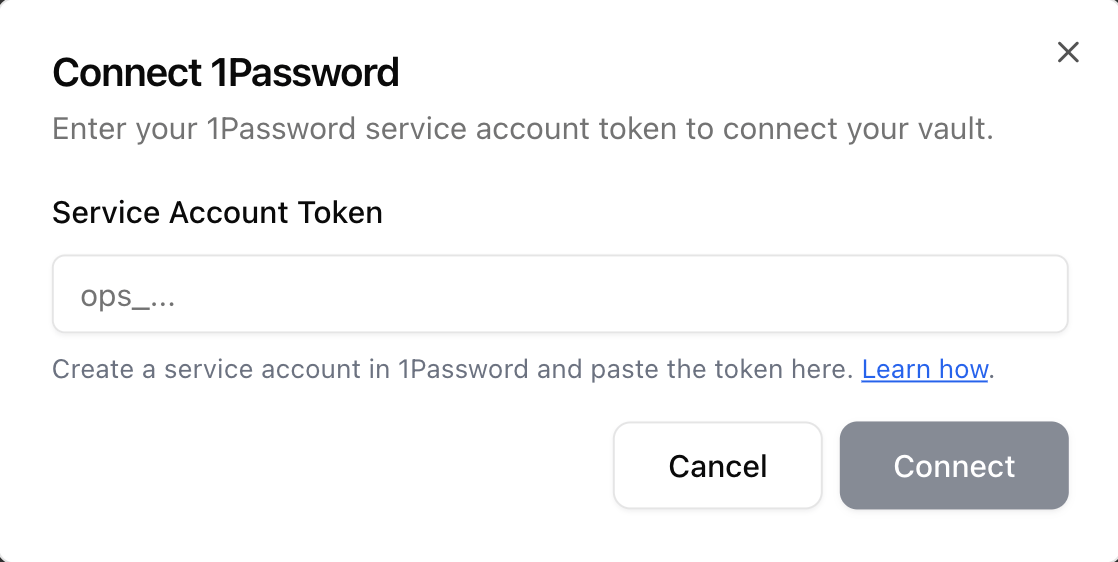 Once connected, the card shows a green **Connected** badge. If the token is rejected, double-check that you copied the
full value and that the service account has access to at least one vault.
## Step 3 — Use it on a browser profile
With 1Password connected, the **Managed Authentication** section of any
[browser profile](/browser-profiles/managed-profiles) lets you source credentials from your vault instead of typing them:
1. Open **Integrate → Browser Profiles** and add or edit a profile.
2. Turn on **Managed Authentication** and choose **1Password**.
3. Pick the **vault** and **item**. Champ reads the username and password at login.
4. If the item carries a TOTP field, you can select **1Password** under **Two-factor authentication** to clear
authenticator-based 2FA automatically.
## Disconnecting
Click **Disconnect** on the 1Password card to remove the token. Browser profiles that rely on 1Password credentials will
stop logging in until you reconnect, so re-point or update those profiles first.
Once connected, the card shows a green **Connected** badge. If the token is rejected, double-check that you copied the
full value and that the service account has access to at least one vault.
## Step 3 — Use it on a browser profile
With 1Password connected, the **Managed Authentication** section of any
[browser profile](/browser-profiles/managed-profiles) lets you source credentials from your vault instead of typing them:
1. Open **Integrate → Browser Profiles** and add or edit a profile.
2. Turn on **Managed Authentication** and choose **1Password**.
3. Pick the **vault** and **item**. Champ reads the username and password at login.
4. If the item carries a TOTP field, you can select **1Password** under **Two-factor authentication** to clear
authenticator-based 2FA automatically.
## Disconnecting
Click **Disconnect** on the 1Password card to remove the token. Browser profiles that rely on 1Password credentials will
stop logging in until you reconnect, so re-point or update those profiles first.