> ## Documentation Index
> Fetch the complete documentation index at: https://docs.champ.ai/llms.txt
> Use this file to discover all available pages before exploring further.
# Set up a computer connection
> Connect a Windows computer for your Computer Use workflows
A **computer connection** gives Champ access to a Windows desktop over Remote Desktop (RDP). Set it up once, then
select it in your Computer Use workflows.
## Connect your computer
Before you start, have a Windows computer with Remote Desktop enabled, a public IP address or hostname, and a Windows
account allowed to connect remotely. Your firewall must allow RDP connections from Champ; ask your IT team to configure
access if needed.
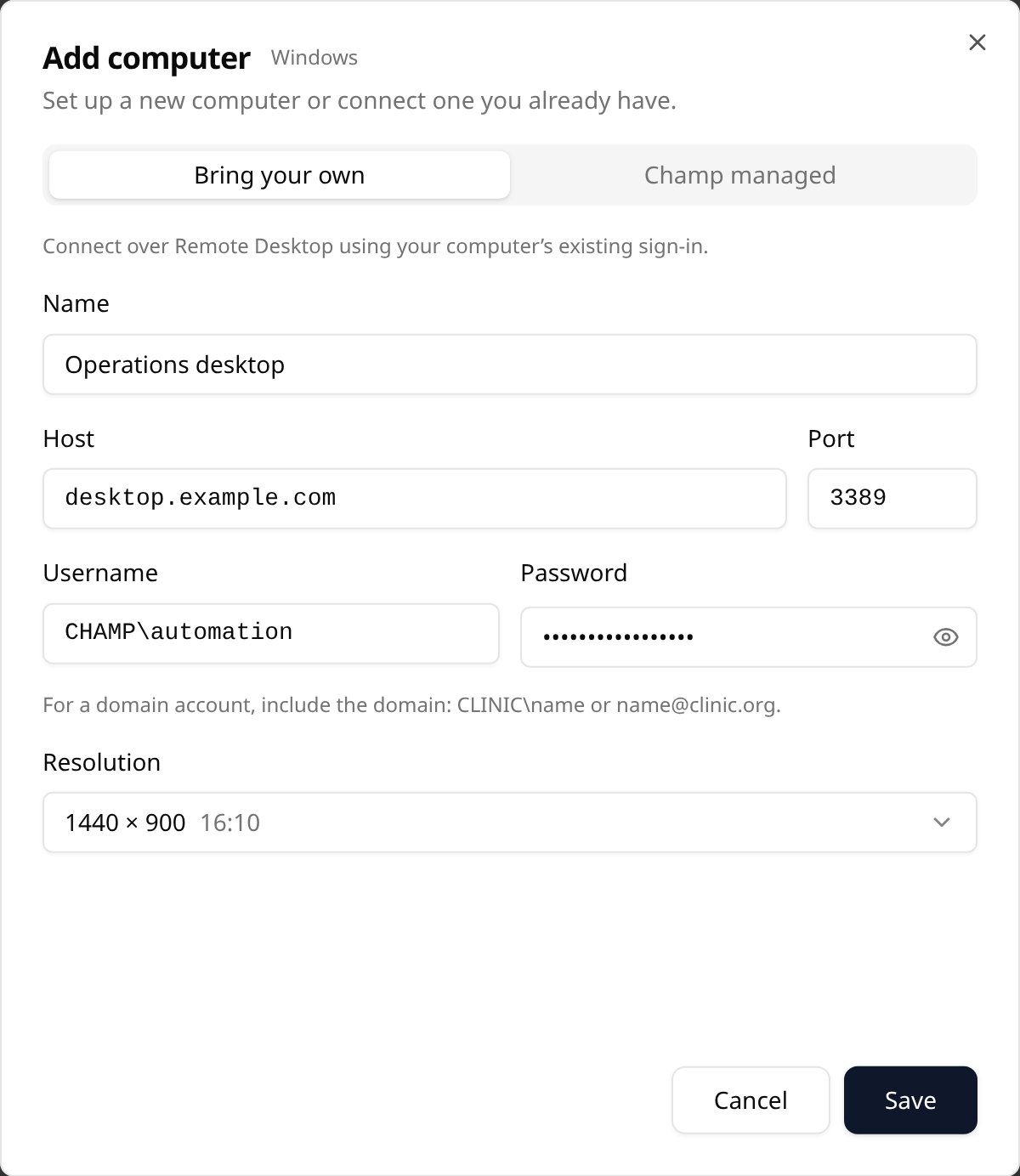
1. Open [Computers](https://dash.champ.ai/app/computers) and click **Add computer**.
2. **Bring your own** is selected by default.
3. Enter a **Name**, **Host** (public IP or hostname), and **Port** (usually `3389`).
4. Enter the Windows **Username** and **Password**. For a domain account, use `DOMAIN\name` or `name@domain.com`.
5. Choose a **Resolution** and click **Save**.
 Connections are shared with your organization. Passwords are encrypted; when editing, leave the password blank to
keep the saved one.
## Use a Champ-managed computer
Champ admins can also choose **Champ managed** in the same dialog. Review the generated name and sign-in, choose a
**Size** and **Resolution**, then click **Set up computer**. Wait for setup to finish before connecting. If this option
isn't available, contact your Champ team to arrange a managed computer.
## Test and use the connection
1. On the computer's page, click **Connect** and confirm the Windows desktop opens. Install any applications and sign
in to the accounts your workflow needs.
2. Close the live view or click **Disconnect** when finished. Each computer allows one active connection at a time.
3. Open your Computer Use workflow, select the computer under **Settings → Computer**, then click **Connect** to
start building steps.
If the connection fails, check that the computer is running, Remote Desktop is enabled, the host and credentials are
correct, and the firewall allows access from Champ.
This documentation is built and hosted on [Mintlify](https://mintlify.com), a developer documentation platform.
Connections are shared with your organization. Passwords are encrypted; when editing, leave the password blank to
keep the saved one.
## Use a Champ-managed computer
Champ admins can also choose **Champ managed** in the same dialog. Review the generated name and sign-in, choose a
**Size** and **Resolution**, then click **Set up computer**. Wait for setup to finish before connecting. If this option
isn't available, contact your Champ team to arrange a managed computer.
## Test and use the connection
1. On the computer's page, click **Connect** and confirm the Windows desktop opens. Install any applications and sign
in to the accounts your workflow needs.
2. Close the live view or click **Disconnect** when finished. Each computer allows one active connection at a time.
3. Open your Computer Use workflow, select the computer under **Settings → Computer**, then click **Connect** to
start building steps.
If the connection fails, check that the computer is running, Remote Desktop is enabled, the host and credentials are
correct, and the firewall allows access from Champ.
This documentation is built and hosted on [Mintlify](https://mintlify.com), a developer documentation platform.