> ## Documentation Index
> Fetch the complete documentation index at: https://docs.champ.ai/llms.txt
> Use this file to discover all available pages before exploring further.
# Email 2FA
> Route email one-time codes to a Champ email address so managed logins clear 2FA
When a site sends its second-factor code by **email**, Champ reads the code from the profile's
[Champ email address](/browser-profiles/champ-email-address) and feeds it into the login automatically. Set this up once
per [managed profile](/browser-profiles/managed-profiles).
## Step 1 — Enable the Email method
Open your profile under **Integrate → Browser Profiles**, and under **Two-factor authentication** select **Email**. Champ
reads codes from the profile's [Champ email address](/browser-profiles/champ-email-address), generating one if the
profile doesn't have one yet.
Copy the address **before** your first login test, so the site has somewhere to send the code.
## Step 2 — Get codes to the Champ address
Pick whichever fits the site:
* **Create the account with the Champ address** — if you're setting up a fresh account for Champ to use, sign up with
the [Champ address](/browser-profiles/champ-email-address) as the account's email. 2FA codes (and any verification
emails) then land at the address directly — nothing to forward or register.
* **Register it directly** — if the site lets you set the email that receives 2FA codes, paste the Champ address there.
* **Forward from your inbox** — if codes go to a mailbox you control, forward them to the Champ address.
### Forward from Gmail
Following Google's [auto-forwarding guide](https://support.google.com/mail/answer/10957?hl=en):
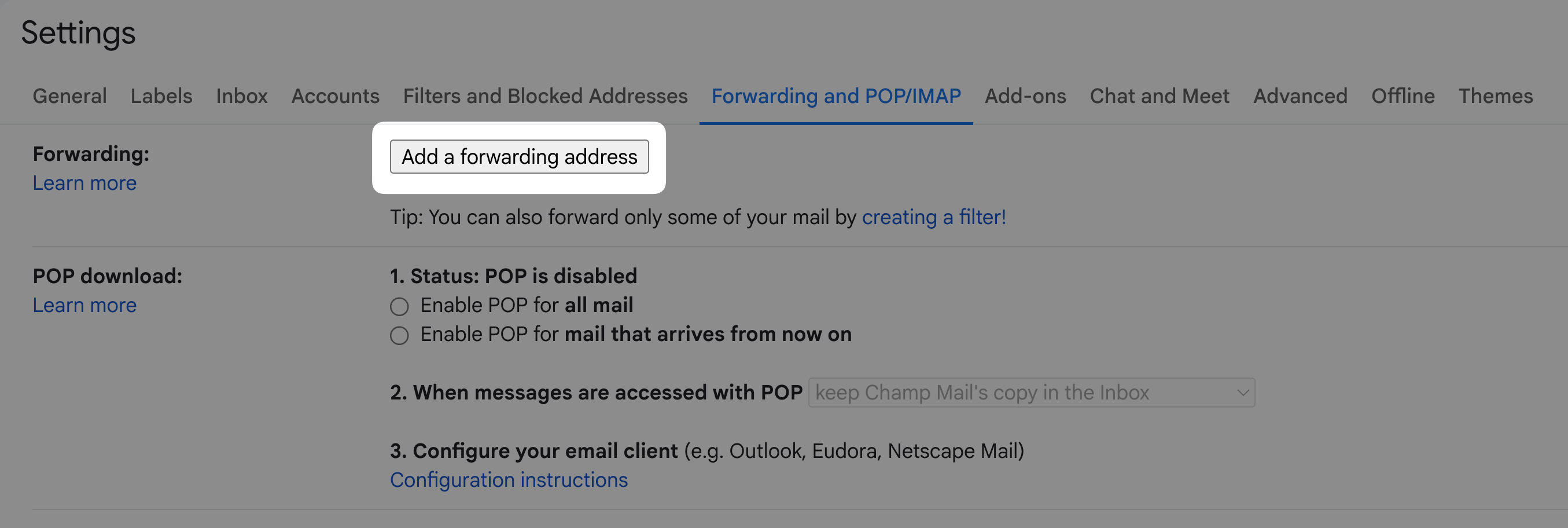
1. In Gmail on the web, open **Settings (⚙️) → See all settings → Forwarding and POP/IMAP**, and click **Add a forwarding
address**.
 2. Paste your Champ address and confirm. Google emails a confirmation to that address. Champ relays it back to
your own inbox as an **"Action required"** message — open it and click Google's confirmation link to authorize
forwarding.
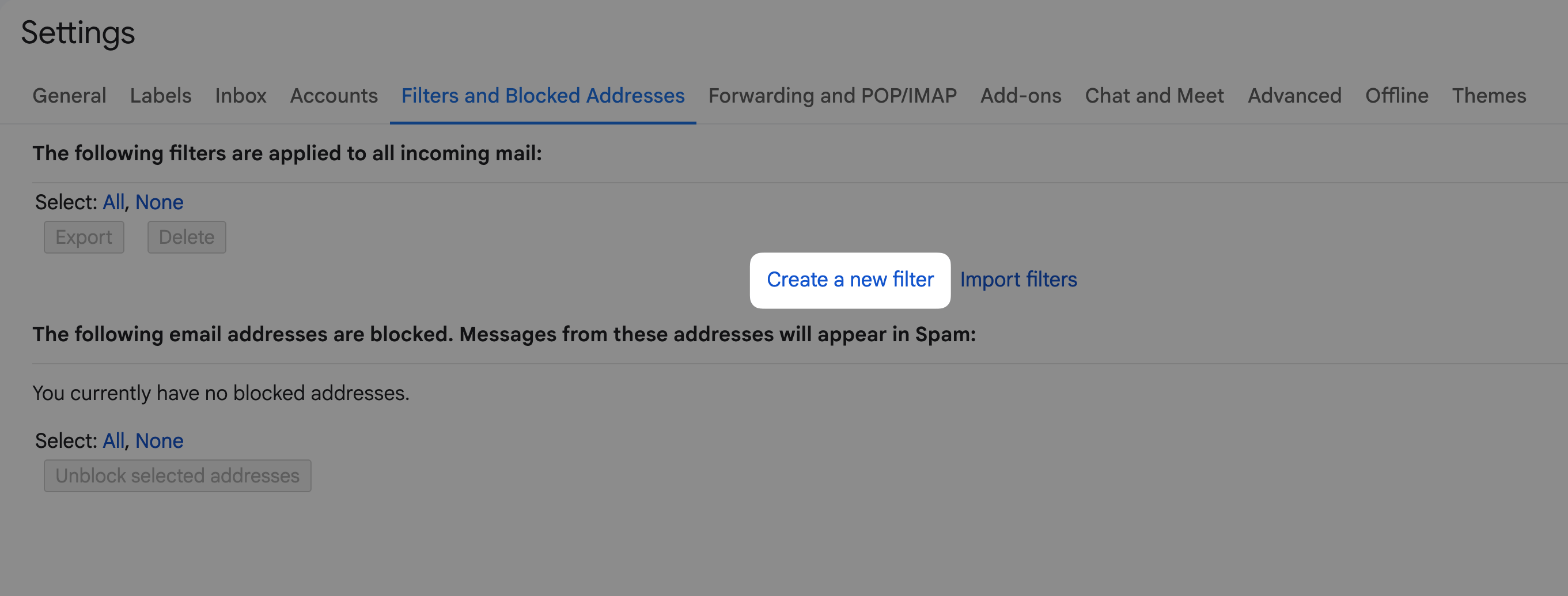
3. Now scope a **filter** so only your 2FA mail is forwarded. Open **Settings → Filters and Blocked Addresses** and click
**Create a new filter**.
2. Paste your Champ address and confirm. Google emails a confirmation to that address. Champ relays it back to
your own inbox as an **"Action required"** message — open it and click Google's confirmation link to authorize
forwarding.
3. Now scope a **filter** so only your 2FA mail is forwarded. Open **Settings → Filters and Blocked Addresses** and click
**Create a new filter**.
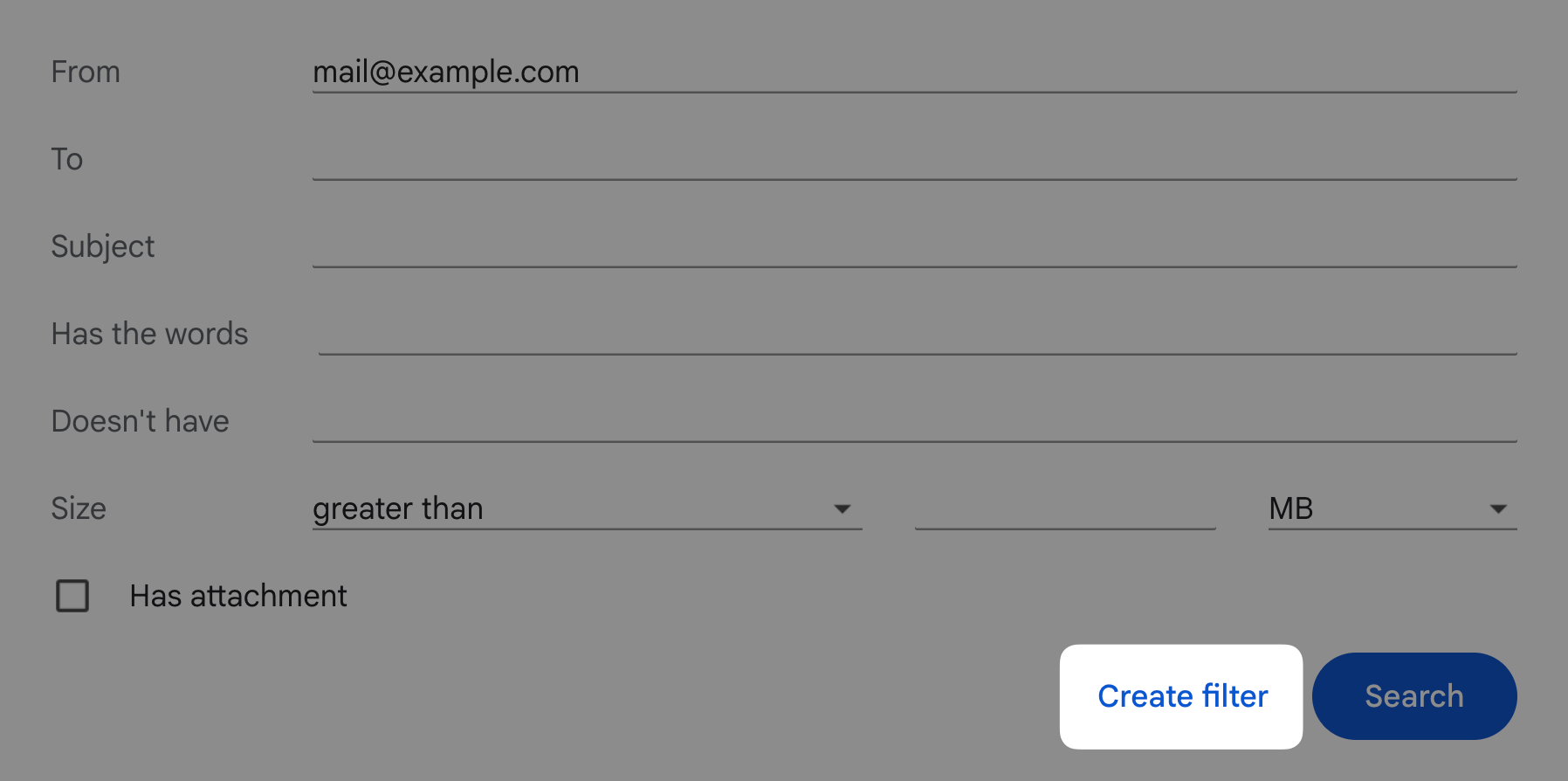
 4. Match on your 2FA sender (**From**) or **Subject**, then click **Create filter**. Scoping the filter keeps unrelated
mail out and makes code detection more reliable.
4. Match on your 2FA sender (**From**) or **Subject**, then click **Create filter**. Scoping the filter keeps unrelated
mail out and makes code detection more reliable.
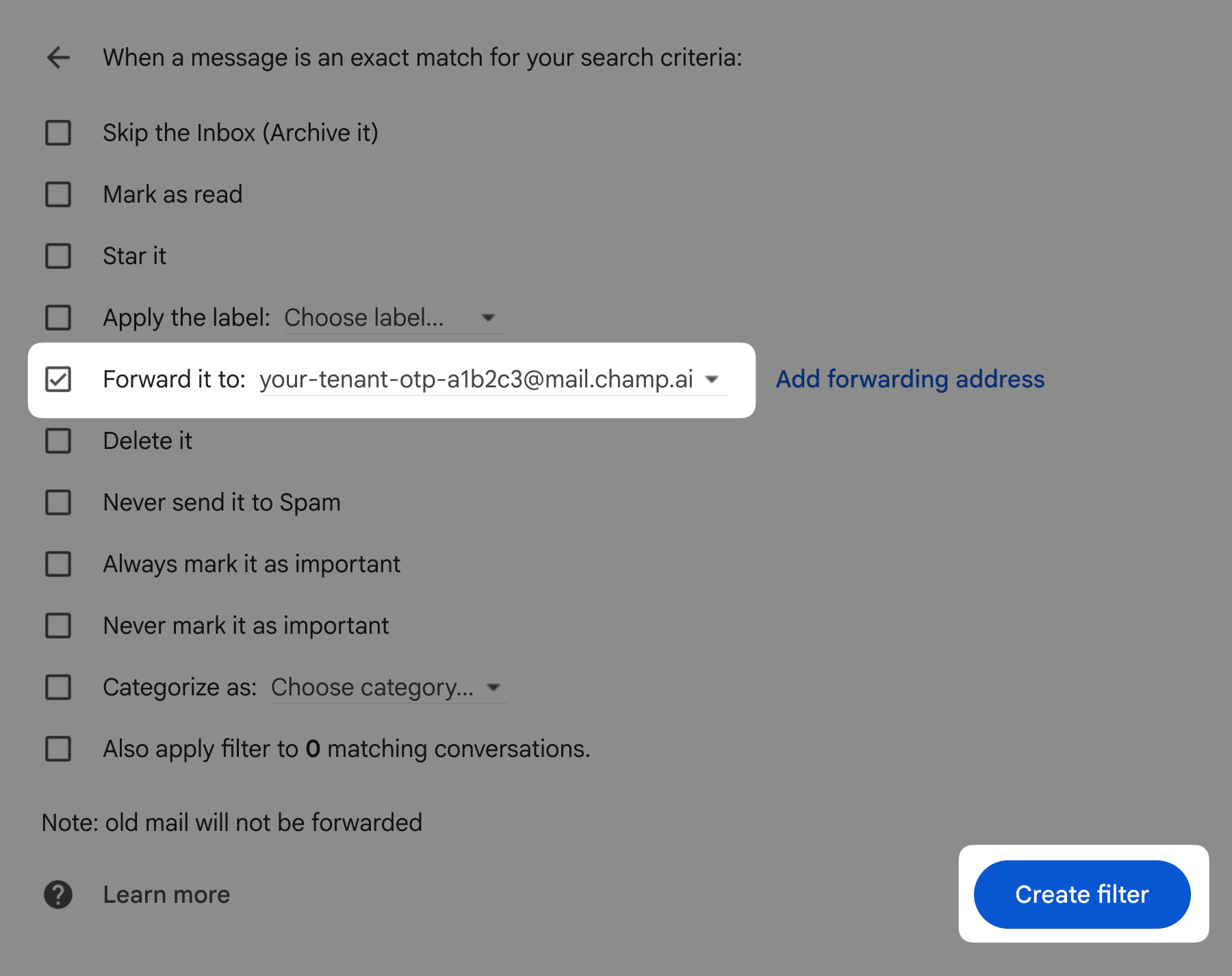
 5. Check **Forward it to** and pick your Champ address, then click **Create filter** to save.
 ## Step 3 — Test the login
Save with **Create & Test** (or run the login from the profile row). Champ logs in, waits for the code at the Champ
address, extracts it, and completes sign-in. It waits about two minutes for the code; if none arrives, the login is
cancelled — re-run it once forwarding is in place.
## Step 3 — Test the login
Save with **Create & Test** (or run the login from the profile row). Champ logs in, waits for the code at the Champ
address, extracts it, and completes sign-in. It waits about two minutes for the code; if none arrives, the login is
cancelled — re-run it once forwarding is in place.